Digitize supplier invoices
Upload the invoices you receive by email or as scanned paper copies and get all the structured data without typing it manually into your accounting software.
 CLOUD
Your invoices. Get the data without typing it in.
Turn invoices into structured data you can review and export for your accounting work.
Received invoices you need to review, post or prepare for a closing.
Upload the invoices you receive by email or as scanned paper copies and get all the structured data without typing it manually into your accounting software.
Extract the VAT and withholding tax breakdown from a batch of invoices to speed up your quarterly or monthly closing.
Centralize and structure expense invoices from several employees or departments quickly and consistently.
Verify in seconds that the data on a received invoice (amount, supplier, item) matches what was agreed before authorizing payment.
Extract fields and check the result before taking it into your accounting process.
Upload a PDF or image invoice from the tool.
The reader identifies supplier, date, items, taxes and totals.
Check every field against the original document.
Download structured data in Excel or CSV.
Tool screenshots with demonstration data.
Screenshots show the Spanish interface with demonstration data.
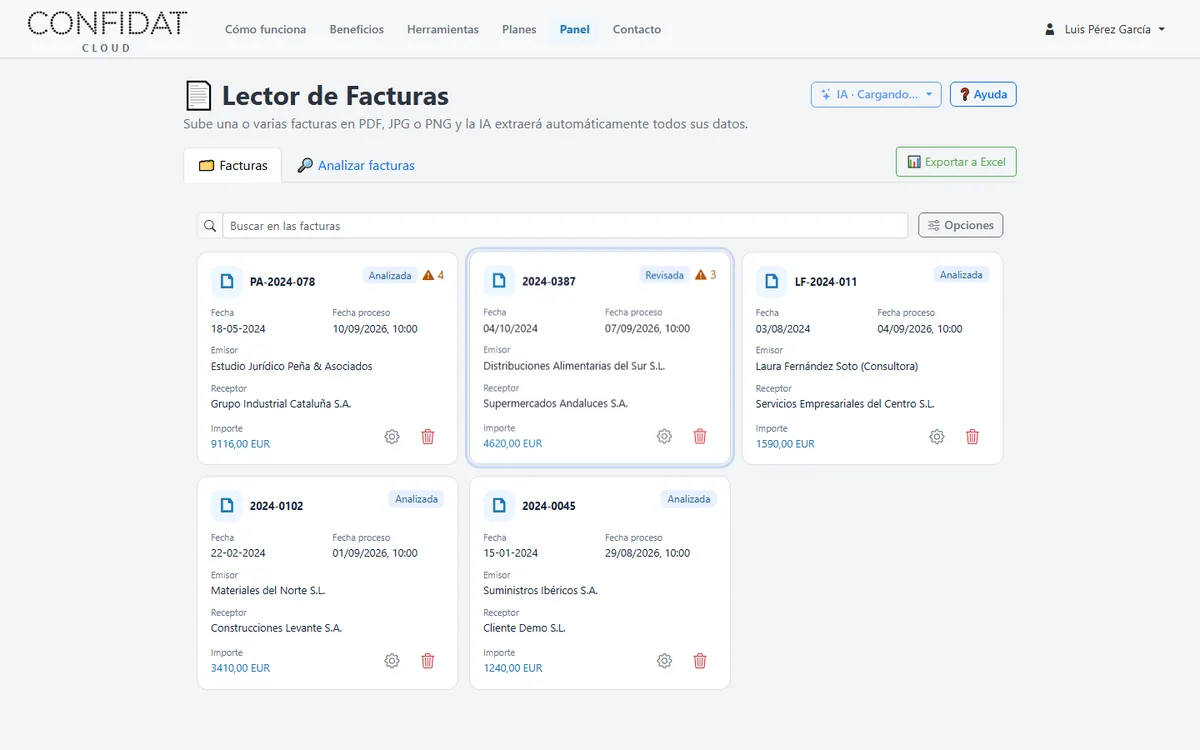
Cards show invoices from the demonstration session.
Demonstration sessionThe detail separates issuer, recipient, lines and taxes to facilitate review.
Demonstration session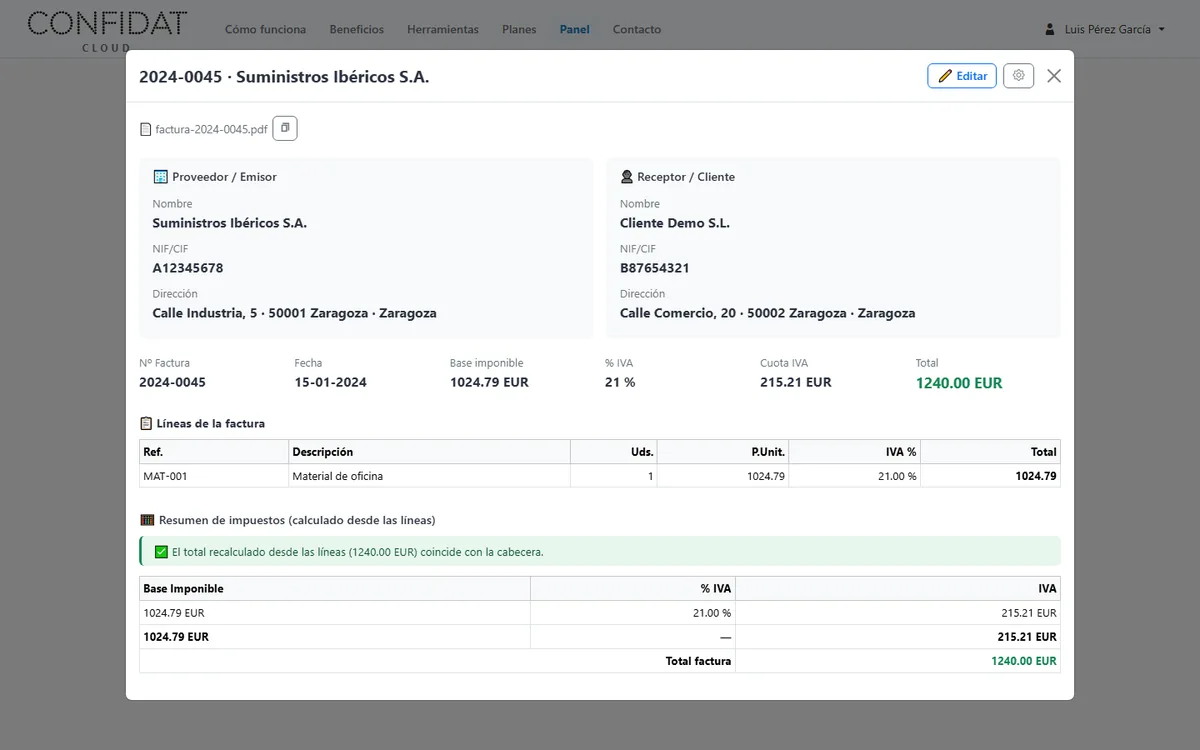
Review supplier and recipient details, descriptions, taxes and amounts in one organised view before exporting.
Practical information before you start.
It accepts invoices in PDF, JPG and PNG from any supplier or format.
Documents are not stored on our servers: they are processed and the resulting data stays available in your session.
Yes, you can upload and process multiple invoices in parallel.
Yes. The AI selector lets you choose the model and reasoning effort. The same selection is used to identify PDF documents and read invoices.
Yes. The last valid selection is remembered for Invoice Reader in that browser and computer.
The Invoices tab opens first and displays one card per invoice. You can search all data and use Options to group, sort and choose the visible fields. These preferences are kept in the browser.
Select an invoice card to open and edit its details. If the original file is available, the gear button next to Edit lets you view it.
They show the relative price level of each model. They are not a fixed number of credits; final usage depends on the work performed.
It separately examines the issuer's letterhead, legal and payment details and the customer or recipient block. Always review extracted data before recording it.
Turn invoices into structured data you can review and export for your accounting work.